Purpose of this guide
This guide explains the three available ordering models, when to use each one, and how Forecast
works - from creation, through production and stock releases, to the
12-month settlement
.
Which order model should I choose?
A quick guide to choosing the right order model.
Will this project / logo be repeated?
YES
NO
Is demand regular and can it be forecast reliably?

FORECAST
Larger volume = lower price. Production and storage financed by Unipatch for 12 months.
ON DEMAND
Order only what you need. Higher unit price, no future commitment
NO / NO YET
YES
1. Three ordering models - one goal
The portal is designed so that every customer and every project does not have to follow the same ordering model. The right model depends on how predictable demand is, how often the logo repeats, and how much future commitment makes business sense.
| Model | When | Price | Risk / commitment | Channel |
| One-off | One-time project that should not be added to the logo library | Individual quotation | No future commitment | orders@unipatch.shop |
| On Demand | Logo in the library, but demand is irregular or still unknown | Price based on the current quantity tier | No future commitment | Portal / Add to cart |
| Forecast | Logo in the library + regular, predictable demand | Price frozen for the forecast quantity | Unused balance invoiced after 12 months | Portal / Forecast |
Simple rule
If you do not have reliable consumption history, start with On Demand. Forecast makes sense when the saving from a larger quantity is supported by real, repeatable demand.
2. One-off order
This model is for a project that is very unlikely to be produced again. There is no need to create a permanent product for it and add a one-time item to the logo library.
When should you use this model?
- a one-off promotional campaign or sponsor activation,
- a logo prepared specifically for a particular tournament, final, anniversary or event,
- a limited edition for a specific year or campaign,
- a project that will not be repeated after completion.
What does the process look like?
- Send the request and artwork to orders@unipatch.shop.
- The request goes directly into the Unipatch CRM.
- Our sales team reviews the request and, if necessary, asks for any missing information.
- You receive an individual quotation.
- Once the quotation is accepted, we start production and arrange delivery as agreed.
Why not add it to the library?
The library should remain clean and useful for projects that repeat. The fewer one-off products it contains, the lower the risk of ordering the wrong variant in the future.
3. On Demand - exactly what you need now
On Demand is the basic ordering model for products already available in the logo library. Select the product, enter the required quantity, and the system applies the current quantity-based price tier. Unipatch produces exactly that quantity and ships it in full.
When is On Demand the best choice?
- a new customer or new club with no purchasing history,
- irregular orders that cannot be forecast reliably,
- when you want to eliminate the risk of unused stock remaining,
- when you need a precise quantity right now.
The price of flexibility
With On Demand, fixed production costs are spread only across the quantity ordered now. Small
runs therefore have a higher unit price, but they create no future commitment.
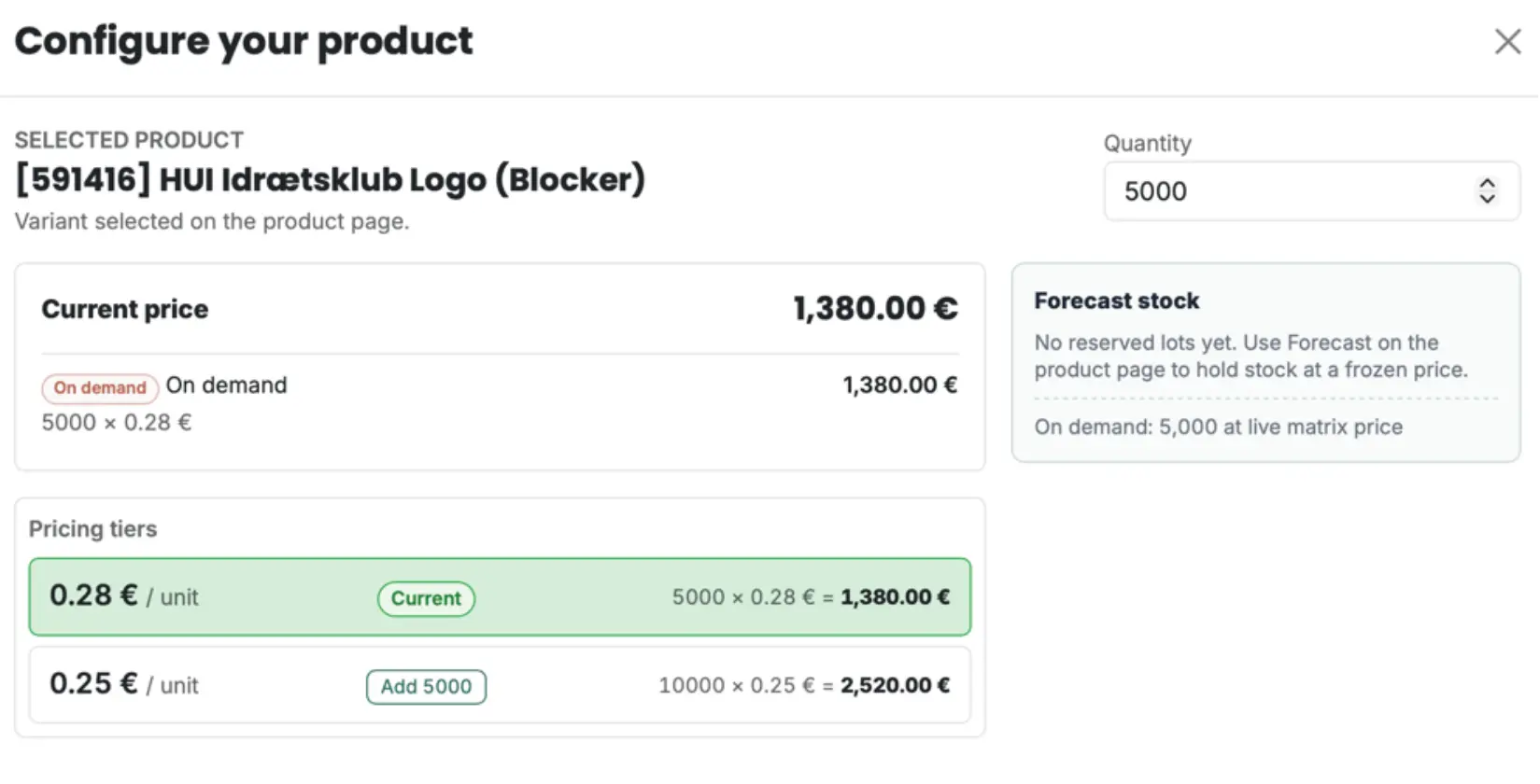
4. Pricing tiers - full transparency
For every published product, the portal shows the available pricing tiers. Users can immediately see how the unit price changes with quantity. This makes it easy to decide whether to order only the current requirement or use Forecast to reach a lower unit price.
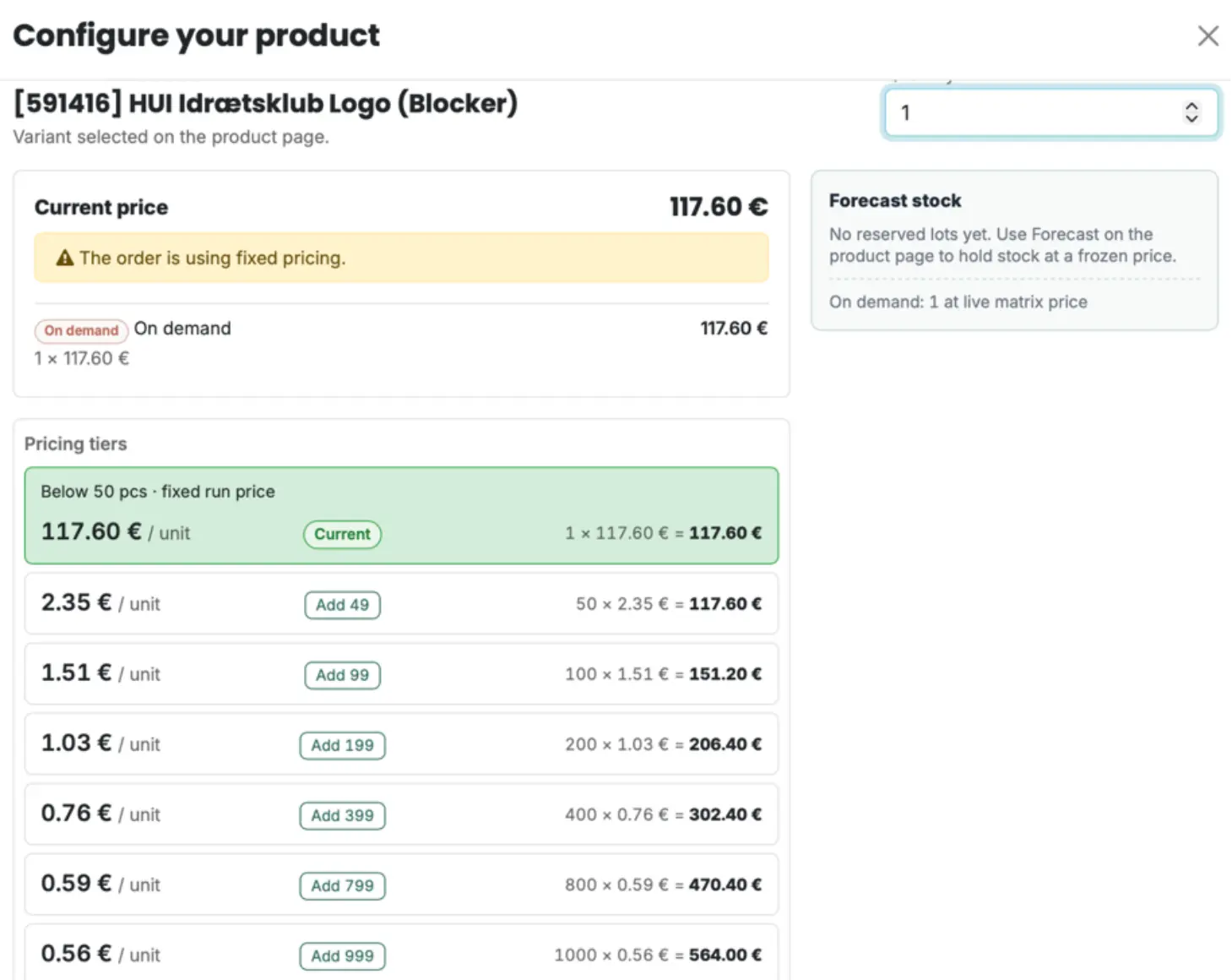
In practice, the principle is simple: a larger production run spreads screen preparation and other fixed production costs over more transfers. The production saving is reflected in the lower unit price.
5. Forecast - advance production, not just a price
reservation
Forecast is intended for approved products in the logo library that repeat regularly and have predictable consumption. The most important rule is simple: Forecast means real production of the full declared quantity.
Unisport chooses the price level
The portal shows all available pricing tiers. The user sees both the unit price and the total value
before making a decision.
Forecast lifecycle
REQUEST FORECAST
Choose quantity and pricing tier
02
AUTOMATIC APPROVAL
Forecast appears in the system immediately
03
PRODUCTION
Unipatch starts real production of the full quantity
04
STOCK + FROZEN PRICE
Release any quantity at the forecast price
05
12 MONTHS
You only pay for released quantities. Unipatch finances production and storage
06
EXPIRY / SETTLEMENT
After 12 months, any unused balance is invoiced
Key point:
Forecast is not a "paper" price reservation.
Once it is created, real production starts.
What does Unipatch take on? For the first 12 months, Unipatch finances the materials, production and storage of the forecast quantity. Unisport does not pay for the full Forecast upfront - only quantities actually released from stock are invoiced
What does Unisport gain?
- a frozen price based on the larger forecast quantity,
- the ability to release even very small quantities at the same forecast price,
- stock produced in the background and held for ongoing releases,
- full visibility of the remaining quantity, Forecast number and Expiry Date,
- the option to set a low-stock notification threshold.
6. How to create a Forecast
Forecast is created from the page of a specific product. It is a separate action from the standard "Add to cart" process. Entering a large quantity in the cart does not create a Forecast.
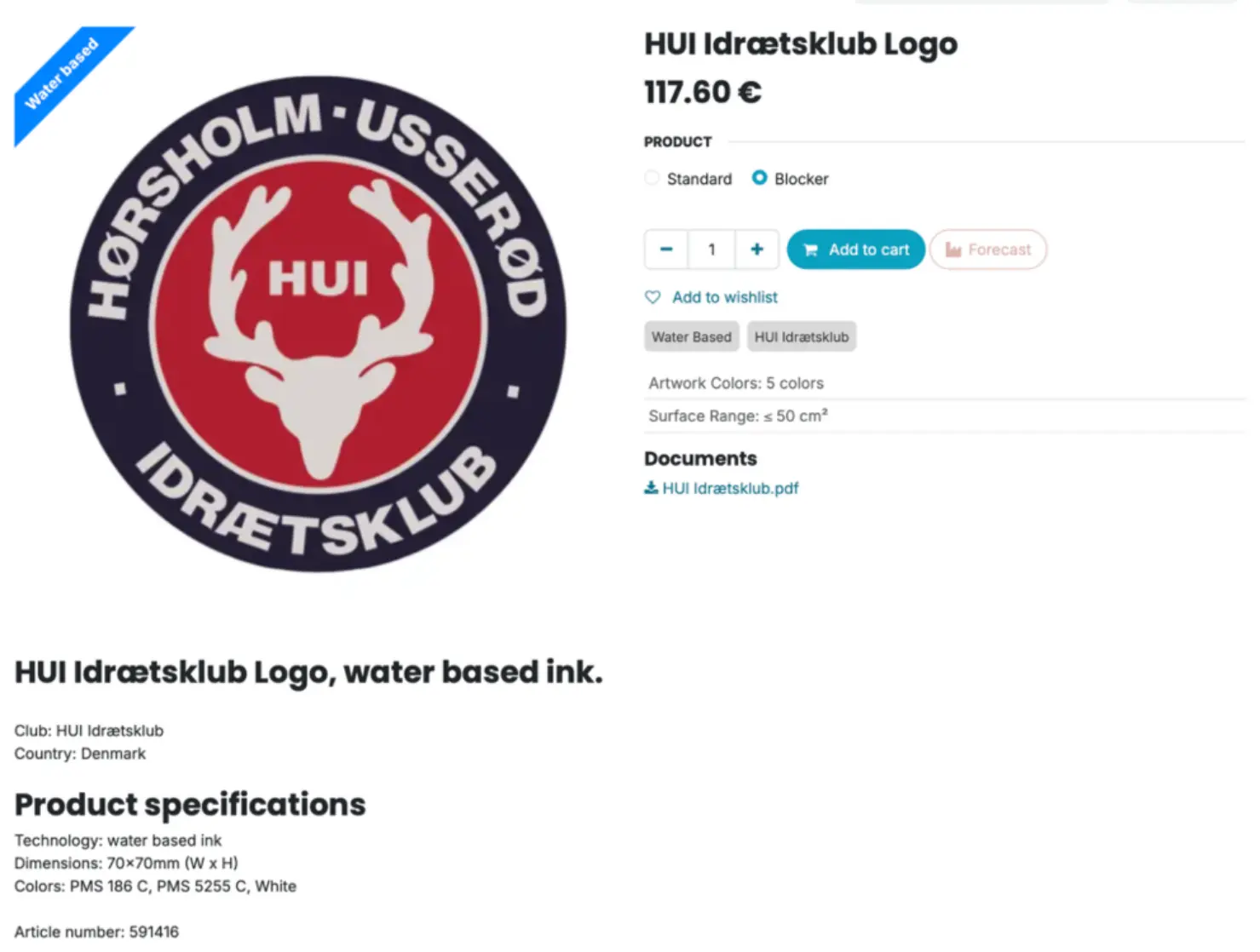
The product page contains two separate actions: Add to cart and Forecast.
After clicking Forecast
- Enter "Quantity to hold" - the quantity you want to forecast.
- The system shows the available pricing tiers and the resulting unit price.
- Optionally set the "Notify me when available quantity drops below" alert.
- Submit the Request Forecast.
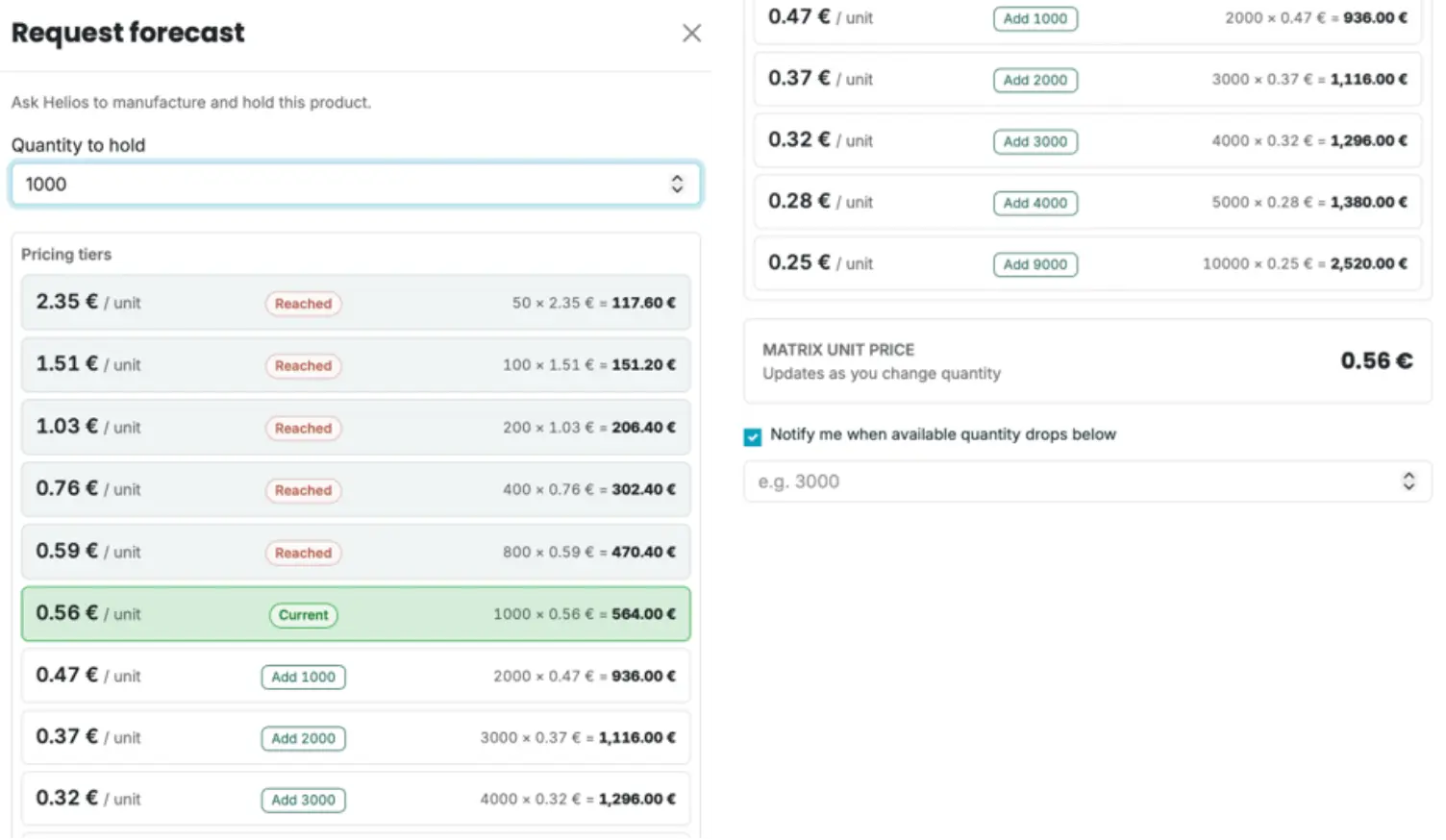
Left: quantity and pricing tier selection. Right: optional low-stock notification threshold.
Current approval logic
Forecasts are currently accepted automatically. The product has already been technically approved in the library, so after Request Forecast the Forecast appears in the system immediately and Unipatch starts production.
7. How to read an active Forecast
On the product page, active Forecasts are shown as separate records. One product can have more than one active Forecast at the same time.
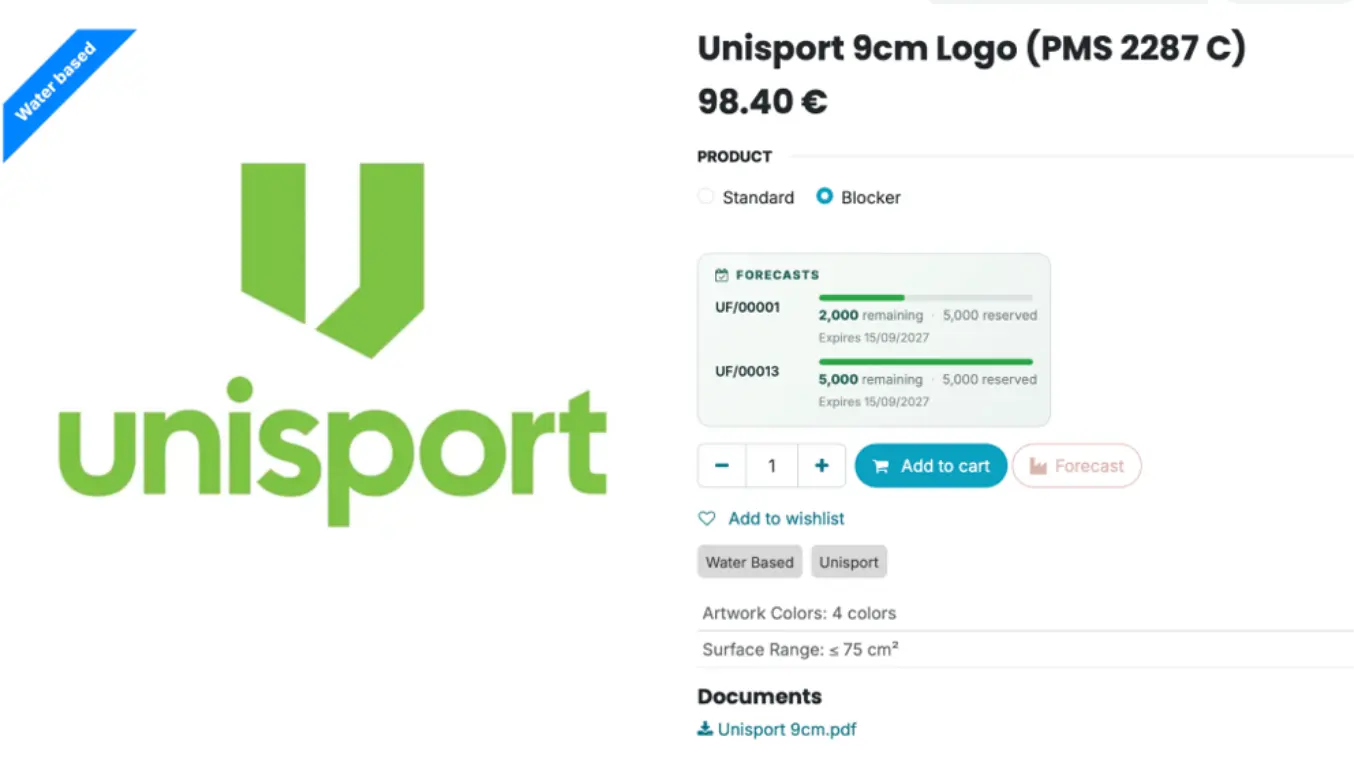
Example of two active Forecasts for the same product.
What do you see on screen?
- the forecast number, e.g. UF/00001,
- the originally reserved quantity and the remaining quantity,
- a stock usage progress bar,
- the Expiry Date - the date when the 12-month forecast period is settled.
Important
In this example, UF/00001 has 2,000 of the original 5,000 pcs remaining. UF/00013 still has the full 5,000 of 5,000 pcs - it has not yet been used.
8.
How to order from Forecast stock
There is no separate form for releasing Forecast stock. The user orders normally through Add to cart. The configurator detects available Forecast stock and automatically allocates the required quantity from it.
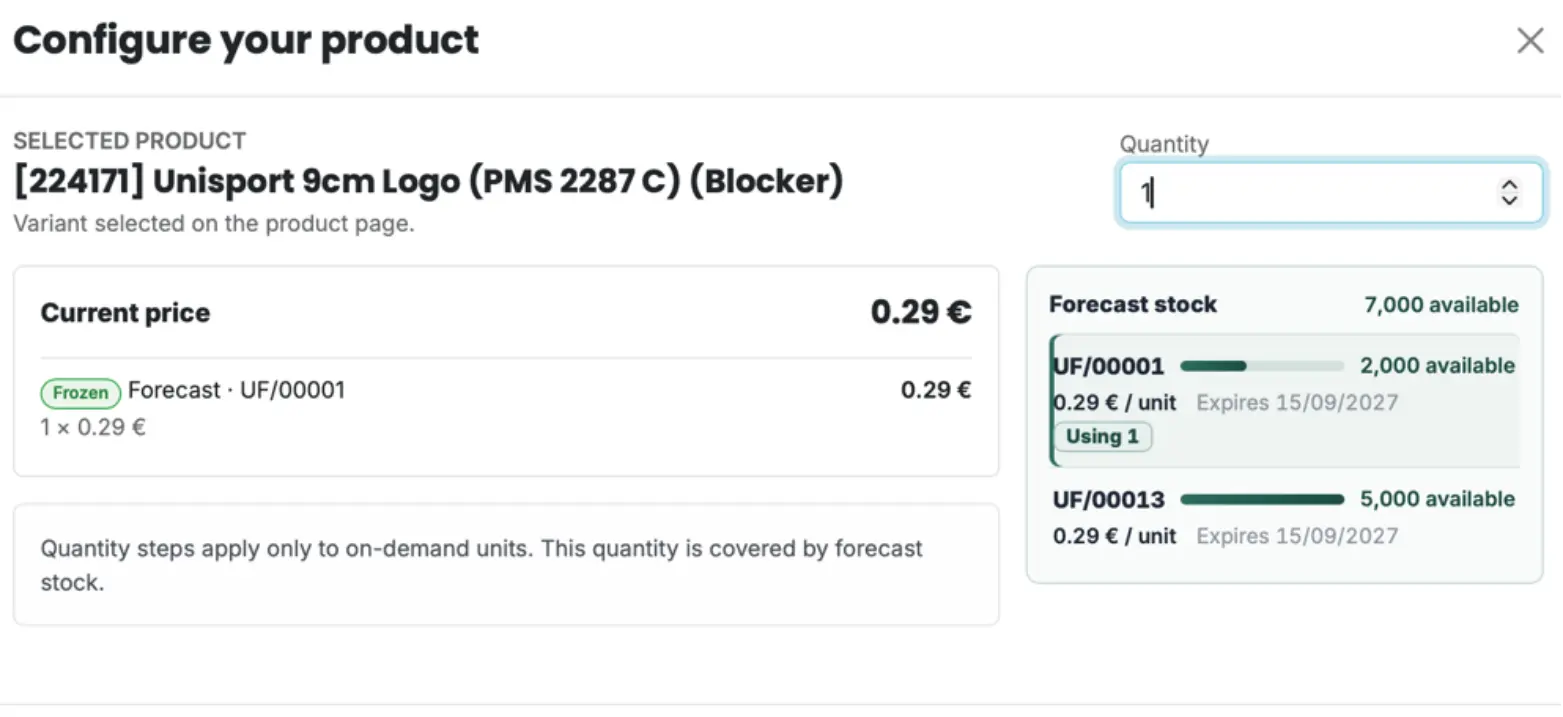
Example: an order for 1 piece. The system allocates it from UF/00001 at the frozen price of EUR 0.29 per unit.
Practical answer: if a Forecast contains 5,000 pcs and you need 500 pcs now, enter 500 and add the product to the cart. If Forecast stock covers that quantity, the system will allocate 500 pcs from the Forecast stock - it will not create a new On Demand production order.
The biggest pricing advantage
You can release 1, 10, 100 or 500 pcs and still use the price achieved for the full forecast quantity. The price is not recalculated as a small On Demand order.
9. More than one Forecast - the system uses FIFO
If a product has several active Forecasts, the system consumes them according to FIFO: the oldest Forecast first, followed by the next one.
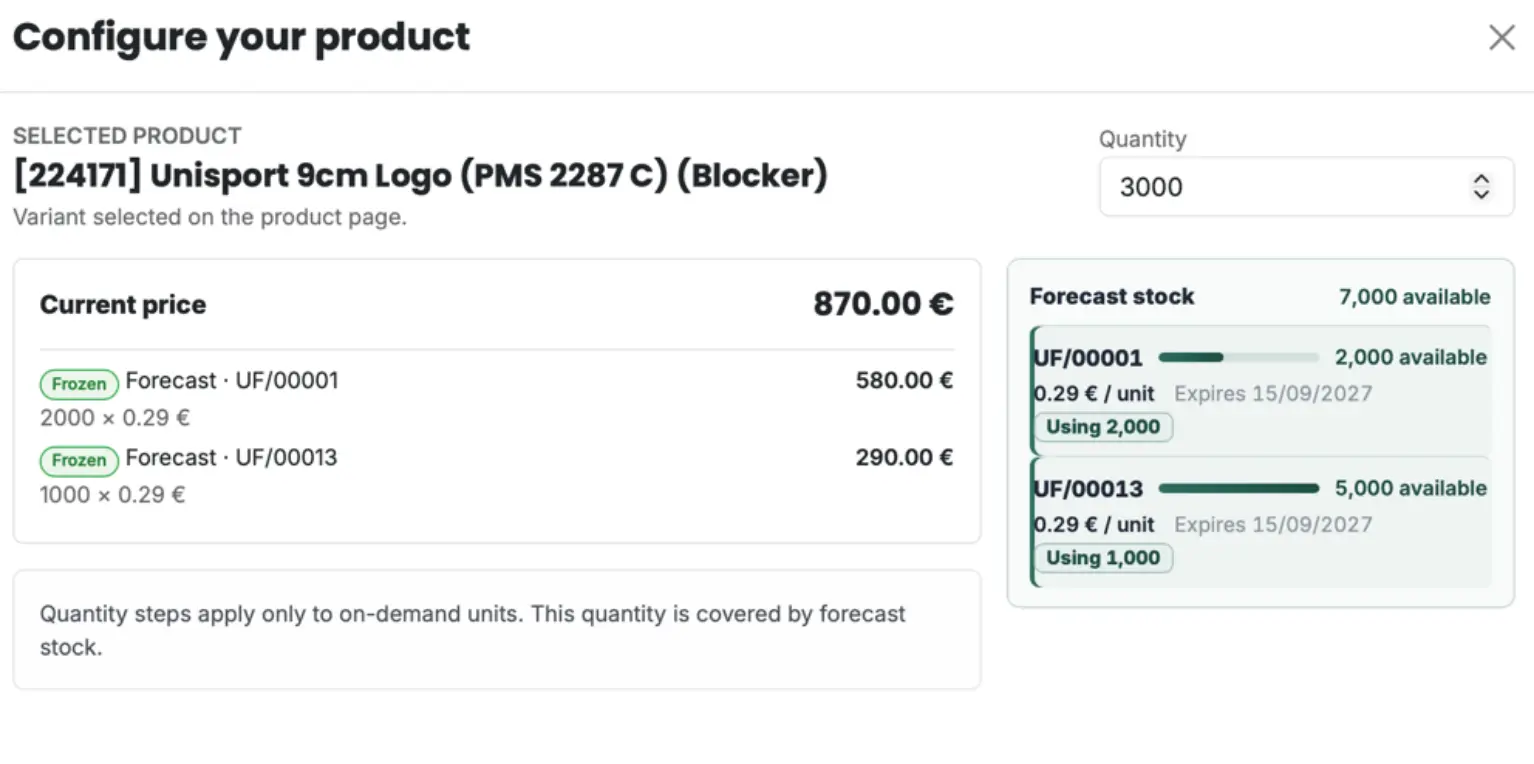 Example: an order for 3,000 pcs. The system allocates 2,000 pcs from UF/00001 and 1,000 pcs from UF/00013.
The user does not need to choose manually which Forecast should supply the stock. The configurator shows the allocation before the product is added to the cart.
Why is FIFO important?
- stock with the shortest remaining time to settlement is used first,
- it makes it easier to manage the age of transfers and production batches,
- it reduces the risk of leaving older stock unused while consuming newer stock.
10. What if the order is larger than the available Forecast
stock?
The system first uses all available Forecast stock. Any excess quantity is treated as On Demand and
priced according to the current pricing matrix.
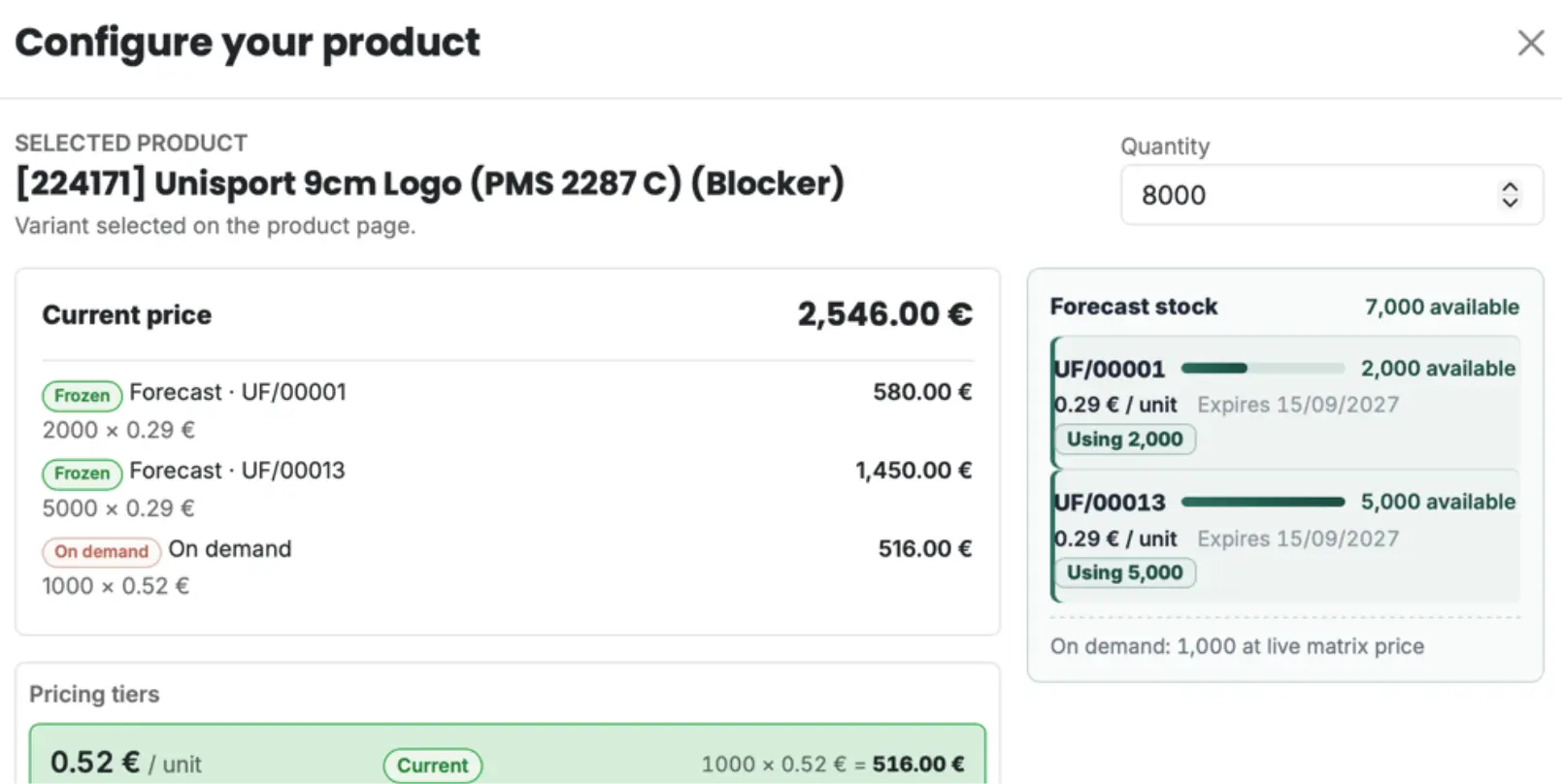
Example: an order for 8,000 pcs with 7,000 pcs available in Forecast stock. 7,000 pcs are allocated at Forecast pricing and 1,000
pcs is treated as On Demand.
If the On Demand price for the excess quantity is too high.
You can create another Forecast for a larger, justified quantity. Existing stock can then be shipped immediately, while the missing part can be supplied from the new Forecast once its production starts. This makes it possible to keep a lower unit price instead of buying the excess quantity at a small On Demand tier.
Example
You have 7,000 pcs in Forecast stock and need 8,000. Instead of buying the missing 1,000 pcs On Demand, you can create another Forecast, for example for 5,000 pcs, provided there is a business case for that volume.
11. 12 months and Expiry Date - how settlement works
What does the Expiry Date really mean?
Forecast created Price frozen Production starts
Unipatch finances production and storage. Only released quantities are invoiced.
Remaining stock is settled
Expiry Date is the end of the 12-month Unipatch financing and storage period
- not the date when the transfer loses quality.
For 12 months from the creation of the Forecast, Unipatch covers the costs of production, materials and storage. Unisport pays only for quantities actually released from the stock. If part of the Forecast remains unused after 12 months, the remaining quantity is invoiced. This is the main commitment on the Unisport side: a Forecast should be based on a realistic estimate of expected consumption.
Expiry does not mean "expired product" The ink manufacturer recommends storing finished transfers for 2 years under proper conditions. Our 12-month period is a conservative commercial period: during the first year, financing and storage remain on the Unipatch side.
After 12 months
- the remaining unused quantity is invoiced,
- under the current model, it should be collected by or shipped to Unisport,
- an additional option for longer storage of paid stock in a separate "external" warehouse is being considered - this functionality has not yet been implemented in the portal.
12. Background production and batch traceability
Once a forecast is created, Unipatch starts real production of the declared quantity. For larger volumes, a Forecast may be produced in several production batches.
Every batch is traceable
- each forecast has its own reference number,
- each production batch receives a unique batch number,
- the forecast number and batch number are applied to the transfer film in microprint,
- if a quality issue occurs, we can identify and isolate the specific production batch and reproduce it if necessary.
Why is this important? Forecast provides lower cost and fast availability without compromising quality control. Stock remains traceable down to individual production batches.
Availability. A Forecast becomes active in the portal immediately after it is created, while production starts in the
background. Once produced, the stock is held ready for fast release. This means subsequent releases do
not require the full production process to be started each time.
Frequently asked questions
No. During the first 12 months, only quantities actually released from the Forecast are invoiced. Any unused balance is settled after 12 months
Yes. Forecast means a real production order for the full declared quantity - it is not just a price reservation.
Yes. If stock is available, even 1 piece is charged at the frozen Forecast price.
Yes. The system supports multiple active Forecasts and consumes them according to FIFO.
The system uses the Forecast stock first and prices the excess quantity as On Demand. You can also create another Forecast to secure a lower price for future volume.
It is the end of the 12-month period during which Unipatch finances and stores the stock, not the
date when the transfer loses quality.
When the customer is new, demand is irregular, or you do not have enough data to forecast consumption reliably. In that case, On Demand is the safer option.
14. Quick checklist before creating a Forecast
☐ The product is already approved and published in the library.
☐ I know the usage history or have a reliable consumption forecast for this logo.
☐ The customer is not planning to change the logo, colours, size or technology during the forecast period.
☐ The selected volume provides a meaningful saving compared with On Demand.
☐ I understand that any unused quantity will be settled after 12 months.
☐ If I need a reminder, I set the "Notify me when available quantity drops below" threshold
Contact
One-off orders:
orders@unipatch.shop
Questions about the portal, products or how a feature works: support@unipatch.shop
The portal is being developed together with Unisport users. If a real-life situation arises that the current
process does not handle clearly enough, we want to know about it and, where possible, adapt the solution
without compromising production consistency or process safety.